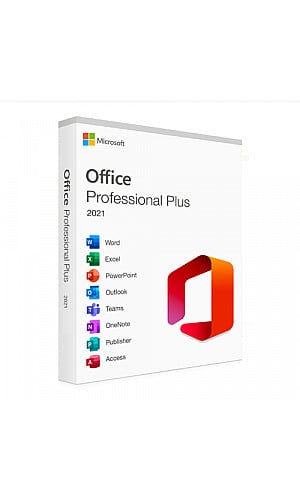

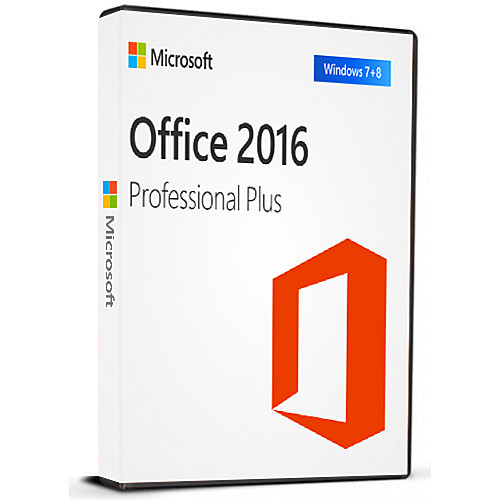










הפעלה מיידית: Microsoft Office 2016 Pro Plus (הפעלה טלפונית) (רישיון לכל החיים / גלובלי) סידיקי
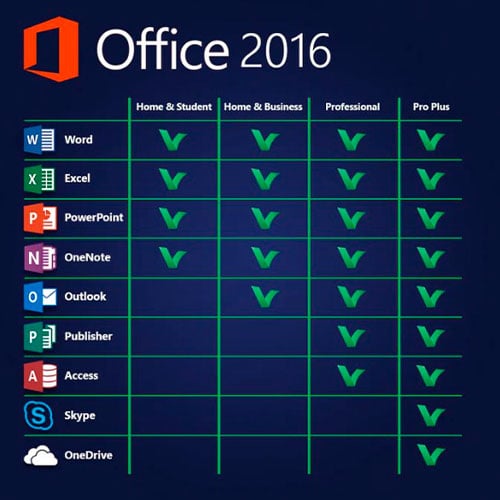
גרסה זו של MS Office 2016 כוללת
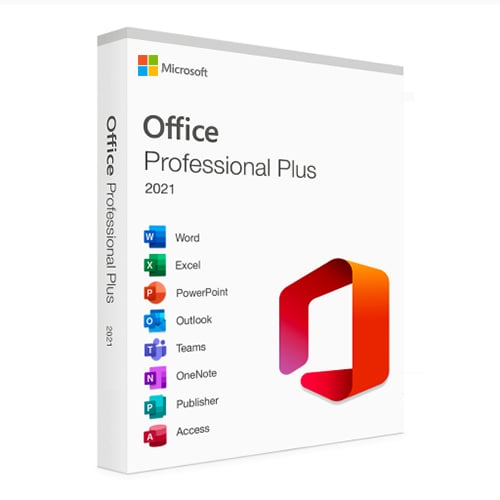
Word, Excel, PowerPoint, OneNote, Outlook, Publisher, Skype for
Business ו-Access לשימוש קבוע על PC אחד (ניתן להשתמש
רק פעם אחת). צרו מכתבים סטנדרטיים או מסדי נתונים, נהלו נתונים וטבלאות,
עצבו מצגות, ארגנו מיילים ועוד!
Microsoft Office Professional Plus 2016 מיועדת בעיקר ל-
חברות ועונה אפילו על הציפיות הגבוהות ביותר. Office Professional Plus 2016, הכוללת את
התוכנות Word, Excel, PowerPoint, OneNote, Outlook, Publisher, Access
ו-Skype for Business, עומדת בכל
הדרישות המוטלות על חבילת תוכנות אופיס מקיפה. בין אם
אתם יוצרים מכתבים סטנדרטיים, מנהלים נתונים וטבלאות, מעצבים
מצגות, יוצרים מסדי נתונים או רוצים לארגן את הדוא"ל שלכם – את
הפרויקטים המקצועיים או האישיים שלכם תוכלו לבצע באמצעות היישומים של Office
תוך זמן קצר.
הוראות הפעלה:
1. הורידו את תוכנת ההתקנה הרשמית מהקישור הזה:
כאן2. הזינו את קוד המוצר שקיבלתם מאיתנו כדי להפעיל את התוכנה.
3. בחרו באפשרות "הפעלה בטלפון".
להוראות מפורטות יותר, אנא בקרו במדור ההורדות ולחצו על הכפתור "כיצד להפעיל".
אנו מציעים גם Windows 11 סידיקי כאן

- האם אקבל חשבונית?
חשבונית תיווצר אוטומטית עם ביצוע הזמנה.
- היכן אוכל למצוא את החשבונית שלי?
לאחר השלמת ההזמנה, החשבונית תהיה זמינה תחת 'החשבון שלי' (בפינה הימנית העליונה של הסרגל העליון) -> 'היסטוריית הזמנות'.
- האם אני יכול לערוך את החשבונית שלי?
נכון לעכשיו, אינך יכול לעשות זאת בעצמך. אנא צור קשר עם התמיכה שלנו באמצעות דוא"ל לכתובת [email protected], ונשמח לסייע לך בנושא. לקבלת תהליך מהיר יותר, אנא כלול את מספר ההזמנה וכל מידע רלוונטי שברצונך שיוצג (כגון שמך, מספר תעודת זהות/מס וכו').
- האם אני יכול להתקין את זה על macOS?
לא, מוצר זה אינו תומך ב-MacOS.
- האם ניתן לממש את המוצר הזה בכל מקום?
כן, מוצר זה הוא גרסה גלובלית.
- האם ניתן להעביר את המוצר הזה לחומרה חדשה?
לא, הקוד תקף למחשב אחד או להתקנה אחת - אם תסיר או תתקין מחדש את הקוד, ייתכן שתצטרך לרכוש קוד חדש.
- האם יש דרך ספציפית שאני צריך להתקין את המוצר הזה?
אנא קרא את לשונית 'הפעלה'.
- מה אם אני צריך מדבקת COA עבור מוצר זה?
ניתן לסרוק ולשלוח אליך את תווית ה-COA המודפסת לפי בקשה, תמורת תשלום נוסף.
ACTIVATION INSTRUCTIONS:
Download the official ISO/image to activate: https://officecdn.microsoft.com/pr/492350f6-3a01-4f97-b9c0-c7c6ddf67d60/media/en-US/ProPlusRetail.img
1-After installation, open Word (or any Office app)
When the Office Activation Wizard appears, select “Activate by phone.”
The wizard will display your Installation ID (IID) - you will need this shortly.
The IID is shown as 9 groups of 7 digits.
2-Go to the activation website
Open your browser and go to: https://aka.ms/aoh
3-Sign in
Choose Microsoft Account as the login method and sign in with your Microsoft account.
4-Select “Activate a Microsoft Product”
On the first page, click Activate a Microsoft Product.
5-Choose the product type
Select the category that matches what you are activating:
- Windows → for Windows activation
- Microsoft Office → for Office, Project, or Visio
- Windows Server, etc., if applicable
Note: For Project and Visio, choose Microsoft Office.
6-Select your operating system
7-Choose the product version
Select the version you are activating, for example:
- Office / Project / Visio 2024
- Office / Project / Visio 2021
- Office / Project / Visio 2019, etc.
8-Enter your Installation ID (IID)
You will see nine empty boxes.
Enter each group of digits from your IID into the matching box (9 groups of 7 digits).
When finished, submit the form to continue.
9-Answer the usage question
When asked, “How many computers have you installed this copy on?”
Type 0, then continue.
10-Receive your Confirmation ID
The website will display your Confirmation ID.
11-Enter the Confirmation ID into your PC
Return to the Office activation wizard and enter the Confirmation ID to finish activation.
Video Guide: