تفعيل فوري: Microsoft Office 2021 Pro Plus (تفعيل عبر الهاتف) (ترخيص مدى الحياة / عالمي) كود CD
ما الذي يتضمنه إصدار Microsoft Office 2021 Professional Plus (ISO)
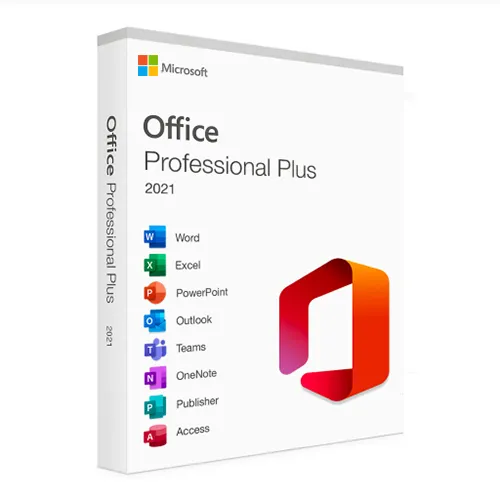
يُعد Microsoft Office 2021 Professional Plus الإصدار الأكثر اكتمالاً الذي يتم شراؤه لمرة واحدة من Office لمستخدمي Windows. تتضمن هذه النسخة جميع تطبيقات الإنتاجية الأساسية من Microsoft المستخدمة في بيئات الأعمال والتعليم والبيئات المهنية:
Word 2021 – إنشاء المستندات وتحريرها بشكل متقدم
Excel 2021 – جداول بيانات قوية وتحليل البيانات والصيغ
PowerPoint 2021 – عروض تقديمية احترافية وأدوات تصميم
Outlook 2021 – إدارة البريد الإلكتروني والتقويم وجهات الاتصال
Publisher 2021 – المواد التسويقية والكتيبات والتصميمات
Access 2021 – إنشاء قواعد البيانات وإدارتها (لـ Windows فقط)
ستحصل على الإصدارات الكاملة لهذه البرامج المخصصة لأجهزة الكمبيوتر المكتبية — دون الحاجة إلى اشتراك.
ماذا يعني مصطلح «Professional Plus» (مقارنةً بالإصدارات المنزلية والتجارية)
Office 2021 متوفر في عدة إصدارات، لكن «Professional Plus» هو الإصدار الأعلى مستوى المتاح.
الإصدار | التطبيقات المضمنة | الأفضل لـ |
|---|
المنزل والطلاب | Word، Excel، PowerPoint | الطلاب والاستخدام المنزلي |
المنزل والأعمال | Word، Excel، PowerPoint، Outlook | مستخدمو الشركات الصغيرة |
Professional Plus | Word، Excel، PowerPoint، Outlook، Publisher، Access | المحترفون والشركات والمستخدمون المتقدمون |
يضيف Professional Plus Access و Publisher، مما يجعله مثاليًا لـ:
الأنظمة واللغات المدعومة
يعمل هذا المنتج على:
✔ Windows
10✔ Windows
11❌ غير متوافق مع MacOS أو أجهزة Chromebook أو iOS أو Android.
دعم اللغات:
يسمح معيار ISO بالتثبيت بعدة لغات مدعومة من Microsoft، بما في ذلك الإنجليزية والإسبانية والألمانية والفرنسية والإيطالية والعديد من اللغات الأخرى.
كيفية التسليم
بعد الشراء:
ستتلقى مفتاح التنشيط على الفور عبر البريد الإلكتروني.
ستتلقى رابط تنزيل لملف ISO Office 2021.
اتبع خطوات التثبيت البسيطة.
قم بتنشيط Office باستخدام مفتاح المنتج الخاص بك.
لا يتم شحن أي قرص مادي — كل شيء رقمي وفوري.
ما هو ملف ISO Office 2021؟
ملف ISO هو صورة تثبيت كاملة لبرنامج Microsoft Office. ويتيح لك ما يلي:
تثبيت Office دون الحاجة إلى اشتراك في حساب Microsoft
الاحتفاظ بنسخة لإعادة التثبيت في المستقبل
التثبيت حتى بدون اتصال دائم بالإنترنت
كيفية استخدام ملف ISO
قم بتنزيل ملف ISO.
انقر بزر الماوس الأيمن على الملف → اختر "تركيب".
قم بتشغيل Setup.exe لتثبيت Office.
أدخل مفتاح المنتج الخاص بك عند المطالبة بذلك.
يحتوي ملف ISO على حزمة التثبيت الرسمية لـ Office المستخدمة في عمليات نشر النظام.
لماذا تختار إصدار ISO؟
✔
حزمة تثبيت Office كاملة✔ مفيد للمستخدمين المتقدمين
وبيئات تكنولوجيا المعلومات✔ ملائم لإعادة
التثبيت✔ بدون رسوم اشتراك — ادفع مرة واحدة، واستخدمه إلى الأبد
- هل سأحصل على فاتورة؟
سيتم إنشاء الفاتورة تلقائيًا عند تقديم الطلب.
- أين يمكنني العثور على فاتورتي؟
بمجرد اكتمال الطلب، ستكون الفاتورة متاحة ضمن "حسابي" (الزاوية العلوية اليمنى من الشريط العلوي) -> "سجل الطلبات".
- هل يمكنني تعديل فاتورتي؟
لا يمكنك القيام بذلك بنفسك حاليًا. يُرجى التواصل مع فريق الدعم عبر البريد الإلكتروني [email protected]، وسيسعدنا مساعدتك. لتسريع العملية، يُرجى إرفاق رقم الطلب وأي معلومات أخرى ترغب في عرضها (مثل اسمك، رقم هويتك/رقمك الضريبي، إلخ).
- هل يمكنني تثبيت هذا على نظام macOS؟
لا، هذا المنتج لا يدعم نظام macOS، وهو متوافق فقط مع نظامي التشغيل Windows 10 و 11.
- هل يمكنني استرداد قيمة هذا المنتج في أي مكان؟
نعم، هذا المنتج هو نسخة عالمية.
- هل يمكنني نقل هذا المنتج إلى جهاز جديد؟
لا، الرمز صالح لجهاز كمبيوتر واحد أو لتثبيت واحد - إذا قمت بإلغاء التثبيت أو إعادة التثبيت، فقد تحتاج إلى شراء رمز جديد.
- هل هناك طريقة محددة يجب عليّ اتباعها لتثبيت هذا المنتج؟
يرجى قراءة علامة التبويب "التفعيل".
- ماذا لو احتجت إلى ملصق شهادة الأصالة لهذا المنتج؟
يمكن مسح ملصق شهادة التحليل ضوئيًا وإرساله إليك عند الطلب، مقابل رسوم إضافية.
ACTIVATION INSTRUCTIONS:
Download the official ISO/image to activate: https://officecdn.microsoft.com/pr/492350f6-3a01-4f97-b9c0-c7c6ddf67d60/media/en-us/ProPlus2021Retail.img (Other languages can be found below)
1-After installation, open Word (or any Office app)
When the Office Activation Wizard appears, select “Activate by phone.”
The wizard will display your Installation ID (IID) - you will need this shortly.
The IID is shown as 9 groups of 7 digits.
2-Go to the activation website
Open your browser and go to: https://aka.ms/aoh
3-Sign in
Choose Microsoft Account as the login method and sign in with your Microsoft account.
4-Select “Activate a Microsoft Product”
On the first page, click Activate a Microsoft Product.
5-Choose the product type
Select the category that matches what you are activating:
- Windows → for Windows activation
- Microsoft Office → for Office, Project, or Visio
- Windows Server, etc., if applicable
Note: For Project and Visio, choose Microsoft Office.
6-Select your operating system
7-Choose the product version
Select the version you are activating, for example:
- Office / Project / Visio 2024
- Office / Project / Visio 2021
- Office / Project / Visio 2019, etc.
8-Enter your Installation ID (IID)
You will see nine empty boxes.
Enter each group of digits from your IID into the matching box (9 groups of 7 digits).
When finished, submit the form to continue.
9-Answer the usage question
When asked, “How many computers have you installed this copy on?”
Type 0, then continue.
10-Receive your Confirmation ID
The website will display your Confirmation ID.
11-Enter the Confirmation ID into your PC
Return to the Office activation wizard and enter the Confirmation ID to finish activation.
More languages:
https://www.gamers-outlet.net/download-office-2021-professional-plus-download-links-languages
Video Guide:
























 Lifetime License