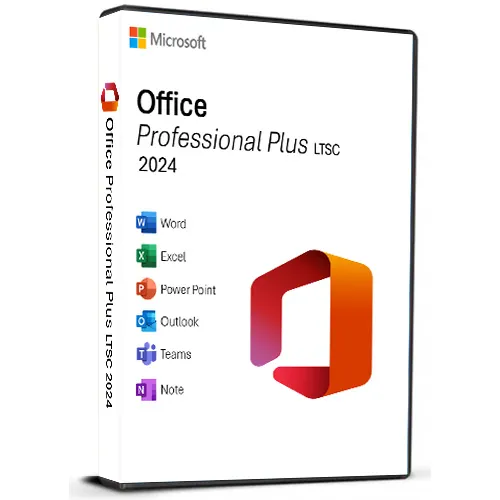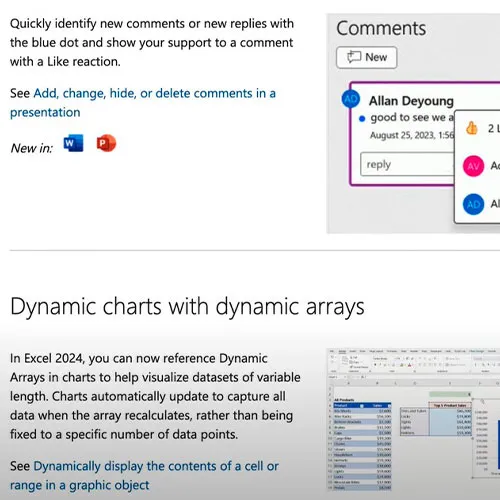

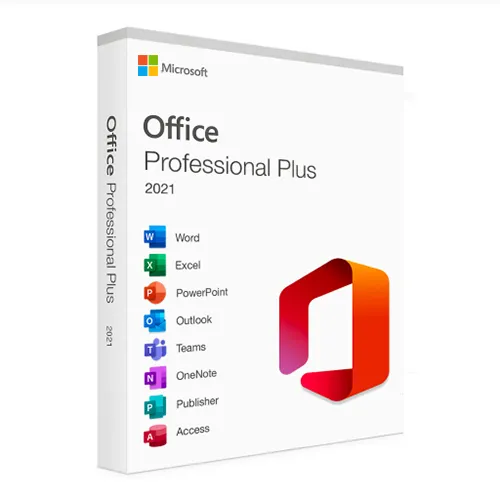












Version 2024 von Access, Excel, OneNote, Outlook, PowerPoint und Word.
Funktioniert nicht auf MacOS/ChromeOS/Android/iOS-Apple-Geräten. Nur mit Windows 10 und Windows 11 kompatibel.
Office 2024 Professional Plus CD-Key: Ihr Schlüssel zur entfesselten Produktivität
Erleben Sie höchste Produktivität mit Microsoft Office 2024 Professional Plus – Ihrem Schlüssel zu nahtloser Effizienz bei allen Aufgaben. Entdecken Sie die Leistungsfähigkeit dieser ultimativen Produktivitätssuite und tauchen Sie ein in eine Welt, in der das Erstellen, Verwalten und Teilen von Dokumenten, Daten und Präsentationen zu einem flüssigen und dynamischen Erlebnis wird.
Diese innovative Software-Suite ist für Studierende, Berufstätige und Unternehmer gleichermaßen geeignet und revolutioniert die Arbeitsweise. Greifen Sie mühelos von jedem Gerät aus auf Ihre Dateien zu und bearbeiten Sie sie. So bleibt Ihr Workflow unterbrechungsfrei und effizient. Mit vielseitigen Anwendungen wie Word, Excel, PowerPoint, Outlook, Access und OneNote sind Ihren Möglichkeiten keine Grenzen gesetzt.
Profitieren Sie von den neuesten Funktionen und Verbesserungen von Office 2024 Professional Plus und steigern Sie Ihre Kreativität und Präzision. Verabschieden Sie sich von Einschränkungen und freuen Sie sich auf eine Zukunft ohne Grenzen – mit dem Microsoft Office 2024 Professional Plus CD-Key Global.
- Bekomme ich eine Rechnung?
Die Rechnung wird bei der Bestellung automatisch erstellt.
- Wo finde ich meine Rechnung?
Sobald die Bestellung abgeschlossen ist, steht die Rechnung unter „Mein Konto“ (obere rechte Ecke der oberen Leiste) -> „Bestellverlauf“ zur Verfügung.
- Kann ich meine Rechnung bearbeiten?
Derzeit ist dies nicht selbst möglich. Bitte kontaktieren Sie unseren Support per E-Mail unter [email protected]. Wir helfen Ihnen gerne weiter. Für eine schnellere Bearbeitung geben Sie bitte die Bestellnummer und alle relevanten Informationen an, die angezeigt werden sollen (wie Name, Ausweis-/Steuernummer usw.).
- Kann ich das auf macOS installieren?
Nein, dieses Produkt unterstützt kein macOS, es ist nur mit Windows 10 und 11 kompatibel.
- Kann ich dieses Produkt überall einlösen?
Ja, dieses Produkt ist eine globale Version.
- Kann ich dieses Produkt auf neue Hardware übertragen?
Nein, der Code ist für 1 PC oder 1 Installation gültig. Wenn Sie deinstallieren oder neu installieren, müssen Sie möglicherweise einen neuen Code kaufen.
- Gibt es eine bestimmte Art und Weise, wie ich dieses Produkt installieren muss?
Bitte lesen Sie die Registerkarte „Aktivierung“.
- Was ist, wenn ich für dieses Produkt einen COA-Aufkleber benötige?
Der COA-Etikettendruck kann auf Anfrage gegen Aufpreis gescannt und Ihnen zugesandt werden.
To install the correct version of Office ProPlus 2024, please check out the instructions in this PDF: https://download.dlr-as.com/instructions/Installation-Office-ProPlus2024.pdf
1-After installation, open Word (or any Office app)
When the Office Activation Wizard appears, select “Activate by phone.”
The wizard will display your Installation ID (IID) - you will need this shortly.
The IID is shown as 9 groups of 7 digits.
2-Go to the activation website
Open your browser and go to: https://aka.ms/aoh
3-Sign in
Choose Microsoft Account as the login method and sign in with your Microsoft account.
4-Select “Activate a Microsoft Product”
On the first page, click Activate a Microsoft Product.
5-Choose the product type
Select the category that matches what you are activating:
- Windows → for Windows activation
- Microsoft Office → for Office, Project, or Visio
- Windows Server, etc., if applicable
Note: For Project and Visio, choose Microsoft Office.
6-Select your operating system
7-Choose the product version
Select the version you are activating, for example:
- Office / Project / Visio 2024
- Office / Project / Visio 2021
- Office / Project / Visio 2019, etc.
8-Enter your Installation ID (IID)
You will see nine empty boxes.
Enter each group of digits from your IID into the matching box (9 groups of 7 digits).
When finished, submit the form to continue.
9-Answer the usage question
When asked, “How many computers have you installed this copy on?”
Type 0, then continue.
10-Receive your Confirmation ID
The website will display your Confirmation ID.
11-Enter the Confirmation ID into your PC
Return to the Office activation wizard and enter the Confirmation ID to finish activation.
**For a more visual guide, watch our tutorial video here: