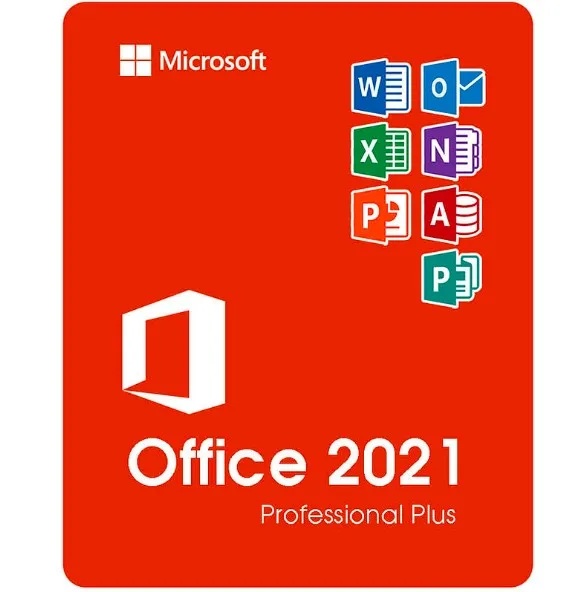
Activación inmediata: Microsoft Office 2021 Pro Plus (activación por teléfono) (licencia de por vida / Global) Clave de CD
Qué incluye Microsoft Office 2021 Professional Plus (ISO)
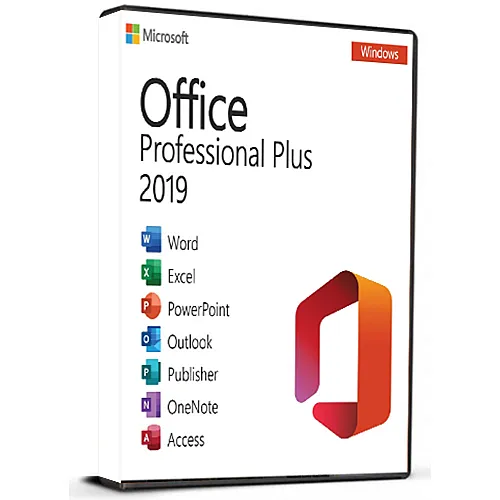
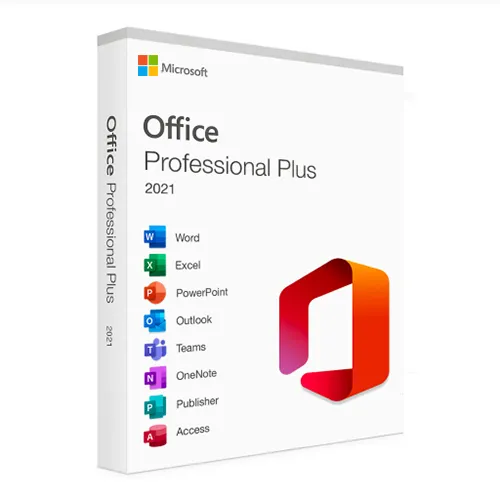
Microsoft Office 2021 Professional Plus es la versión más completa de Office, disponible mediante una compra única, para usuarios de Windows. Esta edición incluye todas las aplicaciones básicas de productividad de Microsoft utilizadas en entornos empresariales, educativos y profesionales:
Word 2021: creación y edición avanzada de documentos
Excel 2021: potentes hojas de cálculo, análisis de datos y fórmulas
PowerPoint 2021: presentaciones profesionales y herramientas de diseño
Outlook 2021: gestión del correo electrónico, el calendario y los contactos
Publisher 2021: materiales de marketing, folletos y maquetación
Access 2021 – Creación y gestión de bases de datos (solo Windows)
Recibirás las versiones completas de escritorio de estos programas, sin necesidad de suscripción.
Qué significa «Professional Plus» (frente a las versiones Home y Business)
Office 2021 está disponible en varias ediciones, pero «Professional Plus» es la versión de mayor nivel.
Versión | Aplicaciones incluidas | Ideal para |
|---|
Hogar y Estudiantes | Word, Excel, PowerPoint | Estudiantes y uso doméstico |
Hogar y empresa | Word, Excel, PowerPoint, Outlook | Usuarios de pequeñas empresas |
Professional Plus | Word, Excel, PowerPoint, Outlook, Publisher, Access | Profesionales, empresas y usuarios avanzados |
Professional Plus incluye Access y Publisher, lo que lo hace ideal para:
Empresas que gestionan datos
Materiales de marketing y diseño
Entornos Office que necesitan todas las funciones
Sistemas e idiomas compatibles
Este producto funciona en:
✔ Windows
10✔ Windows 11❌
No es compatible con macOS, Chromebooks, iOS ni Android.
Idiomas compatibles:
La ISO permite instalar en varios idiomas compatibles con Microsoft, entre ellos inglés, español, alemán, francés, italiano y muchos otros.
Cómo funciona la entrega
Tras la compra:
Recibirás tu clave de activación al instante por correo electrónico.
Recibirás un enlace para descargar el archivo ISO Office 2021.
Sigue los sencillos pasos para instalar.
Activa Office utilizando tu clave de producto.
No se envía ningún disco físico: todo es digital e inmediato.
¿Qué es el archivo ISO Office 2021?
Un archivo ISO es una imagen de instalación completa de Microsoft Office. Te permite:
Instalar Office sin necesidad de una suscripción a una cuenta de Microsoft
Guardar una copia para futuras reinstalaciones
Instalarlo incluso sin una conexión a Internet constante
Cómo utilizar el ISO
Descarga el archivo ISO.
Haz clic con el botón derecho del ratón en el archivo → selecciona «Montar».
Ejecuta Setup.exe para instalar Office.
Introduce tu clave de producto cuando se te solicite.
El ISO contiene el paquete de instalación oficial de Office en formato ISO, utilizado para implementaciones en el sistema.
¿Por qué elegir la versión ISO?
✔
Paquete de instalación completo de Office✔ Útil para usuarios avanzados y entornos de TI✔
Práctico para
reinstalaciones✔ Sin cuotas de suscripción: paga una vez y úsalo de forma permanente
- ¿Recibiré una factura?
La factura se generará automáticamente al realizar el pedido.
- ¿Dónde puedo encontrar mi factura?
Una vez completado el pedido, la factura estará disponible en 'Mi cuenta' (esquina superior derecha de la barra superior) -> 'Historial de pedidos'.
- ¿Puedo editar mi factura?
Actualmente, no puede realizar esta acción usted mismo. Por favor, póngase en contacto con nuestro servicio de asistencia por correo electrónico a [email protected] y con gusto le ayudaremos. Para agilizar el proceso, incluya el número de pedido y cualquier información relevante que desee que se muestre (como su nombre, número de identificación fiscal, etc.).
- ¿Puedo instalar esto en macOS?
No, este producto no es compatible con macOS, solo es compatible con Windows 10 y 11.
- ¿Puedo canjear este producto en algún sitio?
Sí, este producto es una versión global.
- ¿Puedo transferir este producto a un nuevo hardware?
No, el código es válido para 1 PC o 1 instalación; si desinstala o reinstala, es posible que deba comprar un nuevo código.
- ¿Hay alguna forma específica en la que deba instalar este producto?
Por favor, lea la pestaña 'Activación'.
- ¿Qué ocurre si necesito una etiqueta de certificado de análisis (COA) para ese producto?
Si lo solicita, podemos escanear y enviárselo la etiqueta del certificado de análisis (COA) por un cargo adicional.
ACTIVATION INSTRUCTIONS:
Download the official ISO/image to activate: https://officecdn.microsoft.com/pr/492350f6-3a01-4f97-b9c0-c7c6ddf67d60/media/en-us/ProPlus2021Retail.img (Other languages can be found below)
1-After installation, open Word (or any Office app)
When the Office Activation Wizard appears, select “Activate by phone.”
The wizard will display your Installation ID (IID) - you will need this shortly.
The IID is shown as 9 groups of 7 digits.
2-Go to the activation website
Open your browser and go to: https://aka.ms/aoh
3-Sign in
Choose Microsoft Account as the login method and sign in with your Microsoft account.
4-Select “Activate a Microsoft Product”
On the first page, click Activate a Microsoft Product.
5-Choose the product type
Select the category that matches what you are activating:
- Windows → for Windows activation
- Microsoft Office → for Office, Project, or Visio
- Windows Server, etc., if applicable
Note: For Project and Visio, choose Microsoft Office.
6-Select your operating system
7-Choose the product version
Select the version you are activating, for example:
- Office / Project / Visio 2024
- Office / Project / Visio 2021
- Office / Project / Visio 2019, etc.
8-Enter your Installation ID (IID)
You will see nine empty boxes.
Enter each group of digits from your IID into the matching box (9 groups of 7 digits).
When finished, submit the form to continue.
9-Answer the usage question
When asked, “How many computers have you installed this copy on?”
Type 0, then continue.
10-Receive your Confirmation ID
The website will display your Confirmation ID.
11-Enter the Confirmation ID into your PC
Return to the Office activation wizard and enter the Confirmation ID to finish activation.
More languages:
https://www.gamers-outlet.net/download-office-2021-professional-plus-download-links-languages
Video Guide:
























 Lifetime License