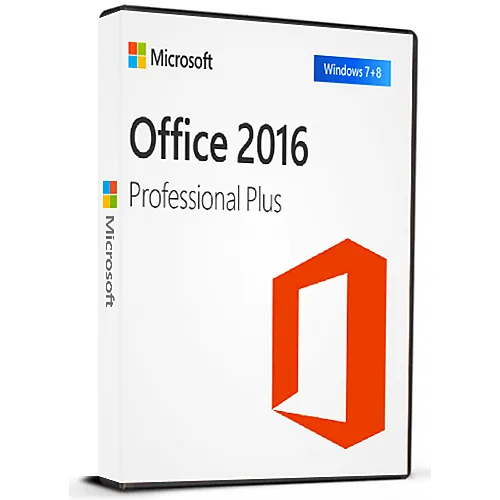
Directe activering: Microsoft Office 2016 Pro Plus (activering via telefoon) (levenslange licentie / Wereldwijd) CD-sleutel
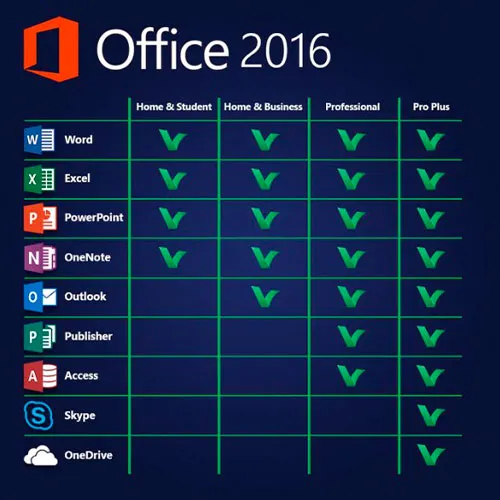
Deze versie van MS Office 2016 bevat
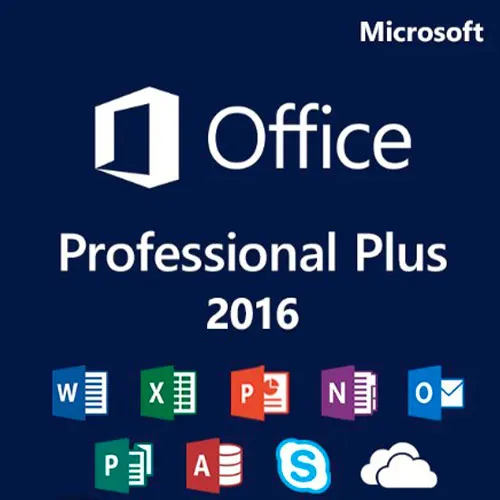
Word, Excel, PowerPoint, OneNote, Outlook, Publisher, Skype for
Business en Access voor permanent gebruik op 1 PC (kan
slechts één keer worden gebruikt). Maak standaardbrieven of databases, beheer grafieken en tabellen,
ontwerp presentaties, organiseer e-mails en nog veel meer!
Microsoft Office Professional Plus 2016 is voornamelijk bedoeld voor
bedrijven en voldoet zelfs aan de hoogste verwachtingen. Met de
programma’s Word, Excel, PowerPoint, OneNote, Outlook, Publisher, Access
en Skype for Business voldoet Office Professional Plus 2016 aan alle
eisen die aan uitgebreide Office-software worden gesteld. Of
u nu standaardbrieven opstelt, grafieken en tabellen beheert,
presentaties ontwerpt, databases aanmaakt of uw e-mails wilt ordenen – uw
professionele of privéprojecten zijn met de Office
toepassingen in een mum van tijd geregeld.
ACTIVERINGSINSTRUCTIES:
1. Download het officiële installatieprogramma via deze link:
Hier2. Voer de Productsleutel in die u van ons hebt ontvangen om de software te activeren.
3. Selecteer de optie „Activeren via de telefoon“.
Ga voor meer gedetailleerde instructies naar de sectie voor downloaden en klik op de knop „Hoe te activeren“.
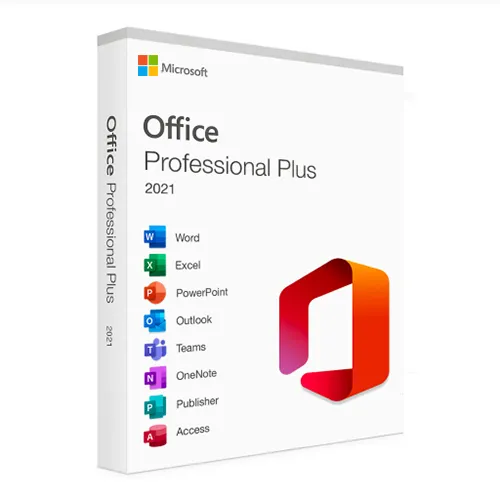
We bieden ook Windows 11 CD-sleutels HIER aan Windows 10 CD-sleutels HIER Office 2021 CD-sleutels HIER 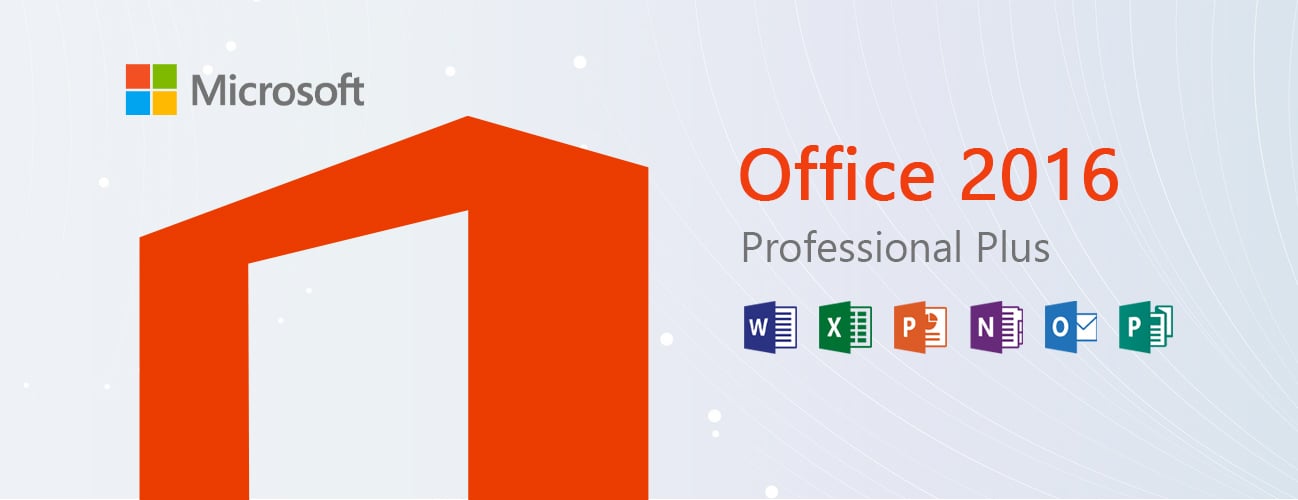
- Krijg ik een factuur?
De factuur wordt automatisch gegenereerd zodra u een bestelling plaatst.
- Waar kan ik mijn factuur vinden?
Zodra de bestelling is afgerond, is de factuur beschikbaar onder 'Mijn account' (rechtsboven in de menubalk) -> 'Bestelgeschiedenis'.
- Kan ik mijn factuur wijzigen?
Momenteel kunt u dit niet zelf doen. Neem contact op met onze klantenservice via e-mail op [email protected], dan helpen we u graag verder. Vermeld voor een snellere afhandeling het ordernummer en alle relevante informatie die u wilt laten zien (zoals uw naam, ID-/btw-nummer, enz.).
- Kan ik dit op macOS installeren?
Nee, dit product is niet compatibel met MacOS.
- Kan ik dit product ergens inwisselen?
Ja, dit product is een wereldwijde versie.
- Kan ik dit product overzetten naar nieuwe hardware?
Nee, de code is geldig voor 1 pc of 1 installatie. Als u de software verwijdert of opnieuw installeert, moet u mogelijk een nieuwe code kopen.
- Is er een specifieke manier waarop ik dit product moet installeren?
Lees het tabblad 'Activering'.
- Wat als ik een COA-sticker nodig heb voor dat product?
De afdruk van het COA-label kan op verzoek worden gescand en naar u worden verzonden, tegen een extra vergoeding.
ACTIVATION INSTRUCTIONS:
Download the official ISO/image to activate: https://officecdn.microsoft.com/pr/492350f6-3a01-4f97-b9c0-c7c6ddf67d60/media/en-US/ProPlusRetail.img
1-After installation, open Word (or any Office app)
When the Office Activation Wizard appears, select “Activate by phone.”
The wizard will display your Installation ID (IID) - you will need this shortly.
The IID is shown as 9 groups of 7 digits.
2-Go to the activation website
Open your browser and go to: https://aka.ms/aoh
3-Sign in
Choose Microsoft Account as the login method and sign in with your Microsoft account.
4-Select “Activate a Microsoft Product”
On the first page, click Activate a Microsoft Product.
5-Choose the product type
Select the category that matches what you are activating:
- Windows → for Windows activation
- Microsoft Office → for Office, Project, or Visio
- Windows Server, etc., if applicable
Note: For Project and Visio, choose Microsoft Office.
6-Select your operating system
7-Choose the product version
Select the version you are activating, for example:
- Office / Project / Visio 2024
- Office / Project / Visio 2021
- Office / Project / Visio 2019, etc.
8-Enter your Installation ID (IID)
You will see nine empty boxes.
Enter each group of digits from your IID into the matching box (9 groups of 7 digits).
When finished, submit the form to continue.
9-Answer the usage question
When asked, “How many computers have you installed this copy on?”
Type 0, then continue.
10-Receive your Confirmation ID
The website will display your Confirmation ID.
11-Enter the Confirmation ID into your PC
Return to the Office activation wizard and enter the Confirmation ID to finish activation.
Video Guide:
























 Lifetime License