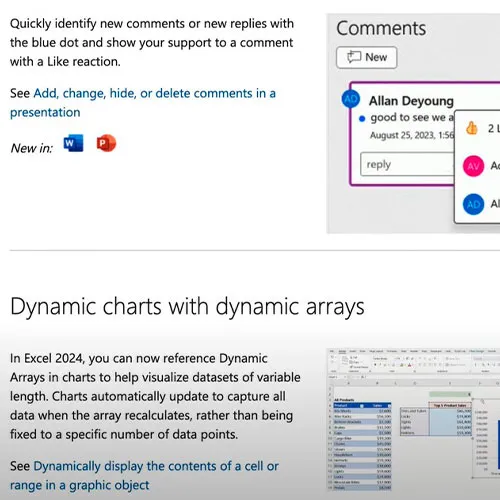

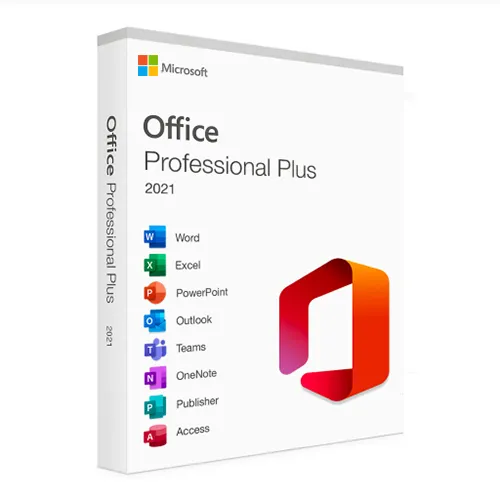











2024-versie van Access, Excel, OneNote, Outlook, PowerPoint en Word.
Werkt niet op Apple-apparaten met MacOS/ChromeOS/Android/iOS. Alleen compatibel met Windows 10 en Windows 11.
Office 2024 Professional Plus cd-sleutel: uw sleutel tot productiviteit ontketend
Ervaar de ultieme productiviteit met Microsoft Office 2024 Professional Plus - uw sleutel tot naadloze efficiëntie bij al uw taken. Door de kracht van deze ultieme productiviteitssuite te benutten, duikt u in een wereld waarin het maken, beheren en delen van documenten, gegevens en presentaties een vloeiende en dynamische ervaring wordt.
Deze geavanceerde softwaresuite is speciaal ontworpen voor studenten, professionals en ondernemers en revolutioneert de manier waarop werk wordt gedaan. Open en bewerk uw bestanden moeiteloos vanaf elk apparaat, zodat uw workflow ononderbroken en efficiënt blijft. Met veelzijdige applicaties zoals Word, Excel, PowerPoint, Outlook, Access en OneNote binnen handbereik, zijn er geen grenzen aan wat u kunt bereiken.
Verbeter uw mogelijkheden met de nieuwste functies en verbeteringen van Office 2024 Professional Plus en til uw werk naar nieuwe hoogten van creativiteit en precisie. Zeg vaarwel tegen beperkingen en omarm een toekomst waarin productiviteit geen grenzen kent - allemaal met de Microsoft Office 2024 Professional Plus Cd Key Global.
- Krijg ik een factuur?
De factuur wordt automatisch gegenereerd wanneer u een bestelling plaatst.
- Waar kan ik mijn factuur vinden?
Zodra de bestelling is voltooid, is de factuur beschikbaar onder 'Mijn account' (rechterbovenhoek van de bovenste balk) -> 'Bestelgeschiedenis'.
- Kan ik mijn factuur bewerken?
Momenteel kunt u dit niet zelf doen. Neem contact op met onze support via [email protected], dan helpen we u graag verder. Voor een snellere afhandeling verzoeken wij u het ordernummer en alle relevante informatie die u wilt zien (zoals uw naam, ID-/btw-nummer, enz.) te vermelden.
- Kan ik dit op macOS installeren?
Nee, dit product ondersteunt geen macOS, het is alleen compatibel met Windows 10 en 11.
- Kan ik dit product overal inwisselen?
Ja, dit product is een wereldwijde versie.
- Kan ik dit product overzetten naar nieuwe hardware?
Nee, de code is geldig voor 1 pc of 1 installatie. Als u de app verwijdert of opnieuw installeert, moet u mogelijk een nieuwe code kopen.
- Is er een specifieke manier om dit product te installeren?
Lees het tabblad 'Activering'.
- Wat als ik voor dat product een COA-sticker nodig heb?
Op verzoek kan het COA-label worden gescand en tegen een meerprijs naar u worden verzonden.
To install the correct version of Office ProPlus 2024, please check out the instructions in this PDF: https://download.dlr-as.com/instructions/Installation-Office-ProPlus2024.pdf
1-After installation, open Word (or any Office app)
When the Office Activation Wizard appears, select “Activate by phone.”
The wizard will display your Installation ID (IID) - you will need this shortly.
The IID is shown as 9 groups of 7 digits.
2-Go to the activation website
Open your browser and go to: https://aka.ms/aoh
3-Sign in
Choose Microsoft Account as the login method and sign in with your Microsoft account.
4-Select “Activate a Microsoft Product”
On the first page, click Activate a Microsoft Product.
5-Choose the product type
Select the category that matches what you are activating:
- Windows → for Windows activation
- Microsoft Office → for Office, Project, or Visio
- Windows Server, etc., if applicable
Note: For Project and Visio, choose Microsoft Office.
6-Select your operating system
7-Choose the product version
Select the version you are activating, for example:
- Office / Project / Visio 2024
- Office / Project / Visio 2021
- Office / Project / Visio 2019, etc.
8-Enter your Installation ID (IID)
You will see nine empty boxes.
Enter each group of digits from your IID into the matching box (9 groups of 7 digits).
When finished, submit the form to continue.
9-Answer the usage question
When asked, “How many computers have you installed this copy on?”
Type 0, then continue.
10-Receive your Confirmation ID
The website will display your Confirmation ID.
11-Enter the Confirmation ID into your PC
Return to the Office activation wizard and enter the Confirmation ID to finish activation.
**For a more visual guide, watch our tutorial video here: