如果您想大量购买,请联系 [email protected]
请注意:这是一次性购买许可,不包含任何后续费用;更新和升级不包含在内。
注意:您不能将此许可证与个人帐户关联,也不能在使用该软件时登录帐户,因为该许可证仅与您的系统或设备绑定。
Corel PDF Fusion (Windows) (Lifetime License / Global)

Corel PDF Fusion (Windows) (Lifetime License / Global)

評級

評論
價格
  • $9.19
cards klarna GPay Apple Pay affirm afterpay

官方授权: Global | 7x24小时美国支持 | Gamers Outlet - CD Keys

平台
Corel Lifetime License
獲得的積分:
7
可用性
有貨
支援
24/7 支援
交付
免费数字交付
您的地区
支持

$9.19

即时激活: Corel PDF Fusion (Windows) (Lifetime License / Global) CD Key

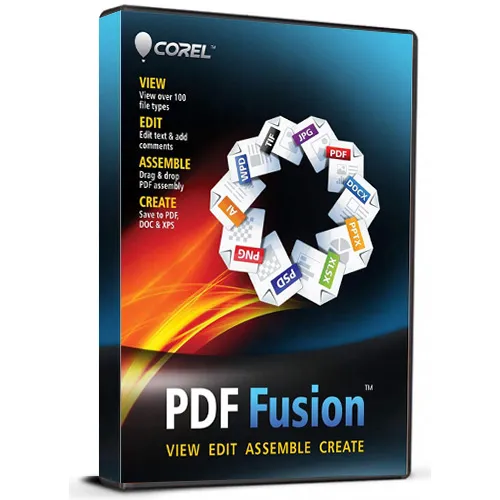
Corel PDF Fusion for Windows 数字下载版是一款集 PDF 创建、编辑和转换于一体的软件,旨在提高工作效率。用户无需使用创建原始文件的软件,即可打开、查看、组装、编辑和创建 100 多种不同文件格式的 PDF 文件。它支持的文件类型包括 PDF、Microsoft Office 文档、电子表格、演示文稿、图形、照片,甚至包括 Visio 和 AutoCAD 等复杂的技术插图文件。

主要产品特性包括:

  • 通过拖放操作,即可轻松将多个文档中的页面合并到一个PDF文件中,从而创建PDF文档。
  • 能够通过简单的拖放操作添加或编辑文本、书签、评论,旋转或裁剪页面,以及重新排列页面顺序。
  • 一键即可将文件保存为PDF、PDF/A、XPS或DOC格式。
  • 批量转换多个文件,一次转换多个文档。
  • 可直接从任何支持打印的应用程序创建 PDF 文件,并集成到 Microsoft Word、Excel 和 PowerPoint 中,方便快速发布 PDF 文件。
  • 演示模式,用于以全屏幻灯片形式查看文件。
  • 系统兼容性涵盖 Windows 7、8、10 和 Windows Server 系统,对资源要求不高:512 MB 内存(建议 1 GB)、250 MB 可用磁盘空间以及 1.3 GHz 或更快的处理器。
  • 部署选项包括支持 Windows Installer 文件 (.msi) 打包,以及使用 Novell ZENworks、Citrix XenApp 和 Windows 组策略集成到企业系统中。
  • Corel PDF Fusion 是小型企业、教育机构和普通办公用户的理想之选,它是一款可靠且经济高效的 PDF 解决方案,能够简化各种文档格式的管理,并免去购买多个软件许可证的麻烦。凭借其全面的功能,Corel PDF Fusion 具有极高的价值,同时避免了其他 PDF 编辑器常见的订阅费用。
  • 我会收到发票吗?
    订单提交后,系统将自动生成发票。

  • 我的发票在哪里可以找到?
    订单完成后,发票将在“我的账户”(顶部栏右上角)->“订单历史记录”中提供。

  • 我可以修改我的发票吗?
    目前您无法自行操作。请发送电子邮件至 [email protected] 联系我们的客服,我们将竭诚为您提供帮助。为了加快处理速度,请在邮件中提供订单号以及您希望显示的任何相关信息(例如您的姓名、身份证/税号等)。

  • 我可以在macOS上安装这个吗?
    不,本产品不支持MacOS。

  • 我可以在任何地方兑换此产品吗?
    是的,这是该产品的全球版本。

  • 我可以将此产品转移到新的硬件上吗?
    不,该代码仅适用于一台电脑或一次安装——如果您卸载或重新安装,可能需要购买新的代码。

  • 安装这款产品有什么特定方法吗?
    请阅读“激活”选项卡。

Activation Instructions for Corel PDF Fusion For Windows:

1. Download the Installer from HERE

2. Run the Installer

   Double-click the downloaded executable file (.exe) to launch the installation process.

3. Accept License Agreement

   Read and accept the End User License Agreement (EULA) to proceed.

4. Choose Installation Type

   Select between a typical (recommended) installation or a custom installation where you can choose specific components or installation paths.

5. Select Destination Folder

   Choose the folder location on your Windows system where Corel PDF Fusion will be installed. The default path is generally fine.

6. Install Required Components

   The installer will copy files, register software components, and may install any necessary prerequisites if missing (like Microsoft Visual C++ redistributables).

7. Complete Installation  

   After copying files and applying settings, the installer will notify that the process is complete.

8. Launch Application  

   You can choose to launch Corel PDF Fusion immediately or later via the Start menu or desktop shortcut.

9. Activate Software  

   On first launch, you may be prompted to enter a license key or activate the software online to enable full features.

10. Installation Requirements  

    Corel PDF Fusion supports Windows 7, 8, 10 and compatible Windows Server editions, requiring at least 512 MB RAM (1 GB recommended), 250 MB free disk space, and a 1.3 GHz processor or higher.

This installation process is straightforward and typical for Windows desktop applications, emphasizing ease of use and minimal user intervention.


該產品沒有評論。

寫評論

注意: HTML 未翻譯!
Captcha
Support